
Import an incident from a document
Summary: You will upload a written statement, let the platform extract a complete draft incident from it, correct anything in the draft, and save it.
Prerequisites
- A role that can import: Administrator, Supervisor, Manager, Investigator, or Store Coordinator.
- A statement file in
.docx,.doc, or.txtformat.
Import the document
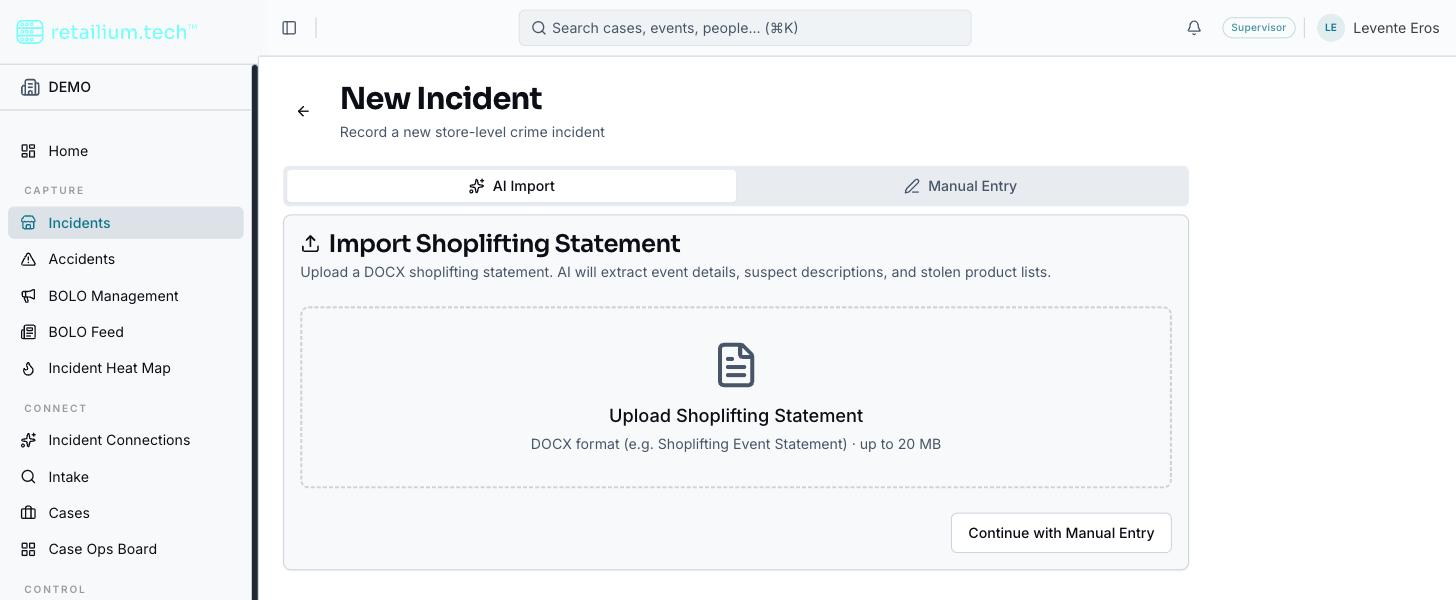
- Go to Incidents, select New Incident, and choose the AI Import tab.
- Upload your file. Images embedded in the document are pulled out along with the text.
- Start processing. The platform reads the document and proposes event details, a narrative, suspects with their photos, stolen products, and witnesses.
- You land on the review screen when processing finishes.
Review before saving
Nothing is saved until you save it. Every extracted field is editable at this step, so review and correct the draft.
- The store record wins over the document. When the extracted store number matches a store, that store's address, city, state, and ZIP replace whatever the document said and become read-only: the store record is the source of truth for location. County keeps the document's value, since stores do not carry one. If you correct the store number here, the incident re-points to the corrected store when you save.
- Suspect photos are shown at their natural shape; select one to open a full-size preview.
Select Save to store the photos and create the incident.
Good to know
- The same document cannot be imported twice. If a document carries a source reference that has already been imported, the platform reports it as a duplicate and creates no second incident. The check is on the document's own reference number.
- Suspect descriptions are generated from the CCTV images in the document. If the platform cannot locate a person in an image, or the analysis fails, the import still completes: the suspect keeps what the document said in writing and simply has no generated description. Photos in Apple's HEIC format are stored but not analyzed; re-upload as JPG or PNG to get a description.
- No BOLO is generated during import. To create a BOLO, open the finished incident and use Generate BOLO. See Create a BOLO from an incident.
- Administrators can bulk import. A whole folder of generated reports can be imported in one run, with a per-report result of created, duplicate, or failed. Only Administrators can reach this.