
About incidents
An incident is the platform's primary record for a retail crime: one reported shoplifting or organized retail crime event at one store, along with its suspects, stolen products, witnesses, vehicles, and attachments. Incidents are the foundation the rest of the platform builds on: they feed pattern detection, case linking, and BOLO alerts.
In the app, this area is labeled Incidents in the sidebar and on page titles. ("Store event" is an older term for the same record; you may still see it in some places.)
Note: This manual covers crime incidents. Non-crime events such as slip-and-fall accidents are a separate record type: an accident report is never an incident, and the two are never counted or linked together. See the Accidents section.
What an incident contains
A single incident record can hold:
- Event details: date and time, store, incident type, how it was observed, a narrative, and police contact information.
- Suspects: one structured entry per person, with physical description, clothing, method of concealment, and a photo (often a still from CCTV).
- Products: the stolen items, with their retail value.
- Witnesses: name, role, and email.
- Vehicles: make, model, year, color, plate, and state.
- Attachments: photos and documents.
Who can work with incidents
| Your role | What you can do |
|---|---|
| Administrator, Supervisor, Managers, Investigator, Store Coordinator | View incidents, and create and edit them |
| Regional / District Asset Protection Manager | View, create, and edit, but only for stores in your territory |
| ORC Analyst, Auditor, Viewer, External Partner | View only |
| Platform Administrator | View and export only: never create or edit |
| Store Associate | File incidents through the store-floor form, and read their own stores' incidents (read-only): see below |
Regional and District Asset Protection Managers are limited to their assigned territory everywhere incidents are read. An incident at an out-of-territory store, or one whose store record has been removed, is treated as if it does not exist for these roles. No role can ever see another organization's incidents.
Store associates are no longer submit-only. A store associate files incidents through a simplified form and can also read the incident list and details for their own assigned stores, but never edits or exports. See Submit an incident from the store floor.
Whether the Incidents area is available at all also depends on your organization's feature entitlements. If your organization is not entitled to Incidents, no one in it reaches this area, and the Incident Heat Map and operational store dashboards go with it. See Roles and access.
Finding an incident
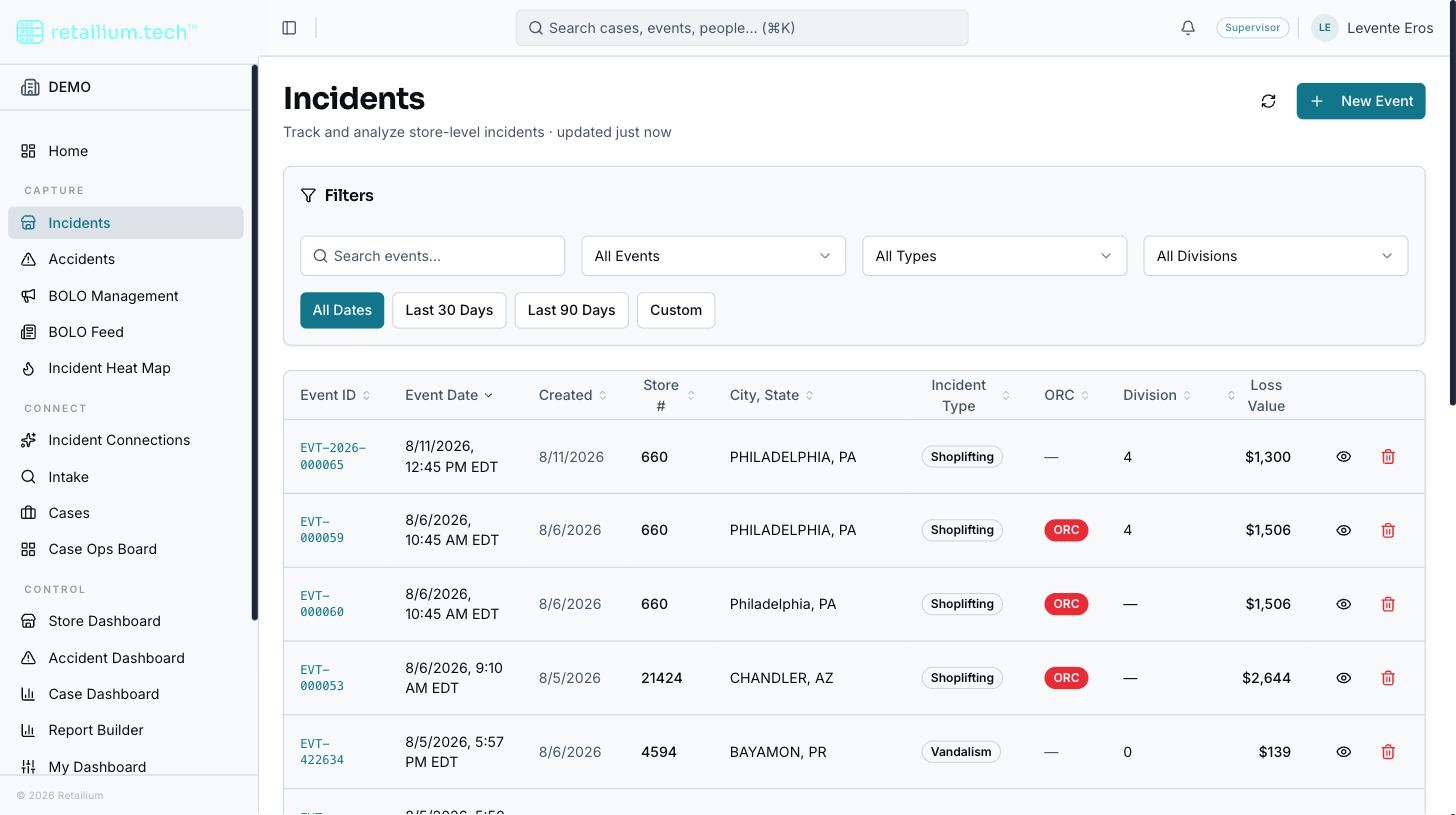
The Incidents list shows one page of 15 rows at a time, with Previous and Next paging and a "Showing N of M" count. It offers three ways to narrow what you see:
Search across an incident's event number, store number, city, and, for imported incidents, the source document's own reference number.
Filters:
- ORC-related: all incidents, ORC only, or non-ORC. An incident with no answer recorded counts as non-ORC.
- Incident type.
- Division.
- Date range, with 30-day and 90-day presets plus a custom range.
Sorting on event number, event date, created date, store number, city and state, incident type, ORC flag, division, and loss value. Rows with no value for the column you sort by always fall to the bottom, in both directions.
Filtering, sorting, searching, and the total count all apply to your whole allowed set of incidents, not just the page on screen, so narrowing a filter narrows the count too, and the count never reveals rows you are not allowed to open.
When the list looks empty
The list distinguishes three situations, so an empty screen is never ambiguous:
- No incidents at all: a plain empty state.
- Filters match nothing: a filtered empty state with a "Clear all filters" button.
- Failed to load: a distinct error message.
If you delete an incident or narrow a filter while on a later page, the list returns you to page one automatically rather than showing a blank page.