
Set up export branding
Summary: You will configure export branding so that case reports, BOLO sheets, incident and accident exports, and other documents carry your organization's look.
Export branding lets your organization put its own look on the PDF documents the platform generates. Everyone who exports a document sees the branding applied automatically; they take no action to opt in.
Who configures it
Administrators and Platform Administrators manage an organization's export branding.
What you can set
| Action | Detail |
|---|---|
| Upload a logo | Replaces the default document header image with your organization's own logo |
| Set header and footer text | Free-form text (up to 10,000 characters each) shown at the top and bottom of every exported document |
| Choose a primary color | Applied to headings and accents. A hex value (for example #2563eb) or a simple CSS color name |
| Choose a font | A plain font stack applied to body text |
| Preview changes live | A preview updates as you edit each field, before anything is saved |
| Generate a sample PDF | Produces a real sample export from the current, unsaved values (placeholder content), so you can check how a change will look |
| Save | Applies the branding to every export the organization generates from then on |
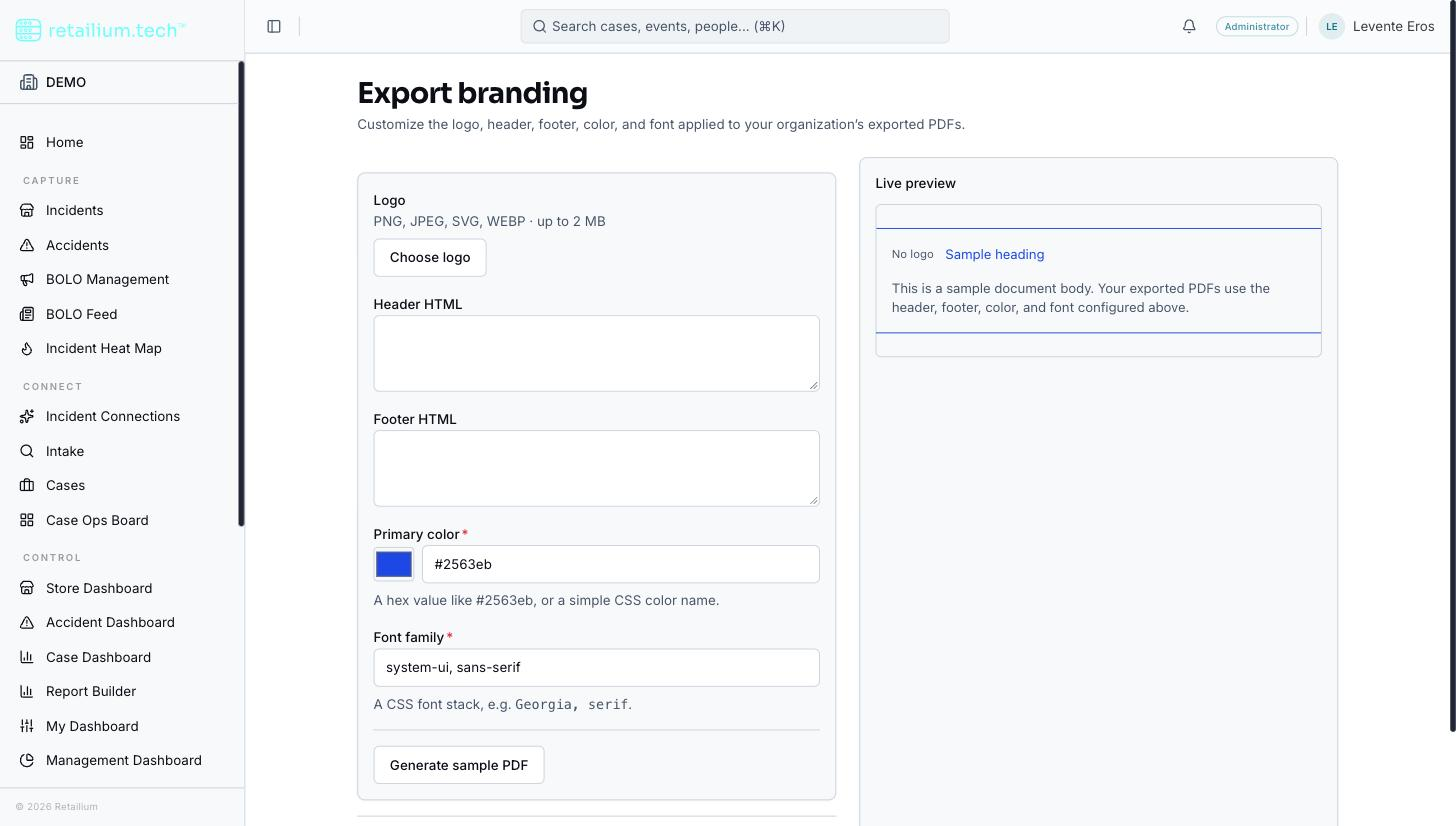
How to check a change before committing
- Edit the fields you want. The live preview updates as you go.
- Select Generate a sample PDF to produce a real sample from your current, unsaved values.
- When it looks right, Save. Discarding (Cancel) resets every field and the logo selection back to the last saved values.
Nothing takes effect until you save: documents exported beforehand keep the previously saved branding, and documents already exported are never re-branded.
Rules and limits worth knowing
- A logo must be a PNG, JPEG, SVG, or WebP image of at most 2 MB. There is no minimum or maximum pixel size: the logo is scaled to fit the header. A file of another type or over 2 MB is refused by name with the reason shown.
- An organization has exactly one logo. Choosing a new file replaces the previous one, and the upload happens as soon as you choose the file, not on Save.
- A saved logo can be replaced but not cleared from this screen. To remove a logo entirely (leaving none), ask the dev team.
- An organization that never configures branding gets a clean default look: the platform's navy accent, a standard font, empty header/footer, and no logo.
- If stored branding is ever unreadable, exports fall back to the default look rather than failing.
- Branding applies to PDF documents only, not spreadsheet exports.
Good to know
- Export branding applies to generated documents. It is separate from the organization logo shown in the sidebar, which a Platform Administrator sets in organization settings. It is also separate from email, which always uses the shared Retailium shell: your logo never appears in platform email.
- There is no per-document-type, per-audience, or per-store branding, and no history of past branding values.