
Manage the stores registry
Summary: You will browse and search the stores registry, assign store managers, and edit store details.
The Stores registry is the centralized list of all retail locations. It provides lookup and browsing during casework and incident reporting, holds each store's manager contact, and is the basis for the territory-scoped access that applies to the field asset-protection roles.
Who can use it
| Role | View stores | Edit manager / add / edit store |
|---|---|---|
| Platform Administrator | Yes | No (no data changes) |
| Administrator, Supervisor, Store Coordinator | Yes | Yes |
| Regional / District Asset Protection Manager | Yes (territory only) | Yes (territory only) |
| All other internal roles | No | No |
Regional and District managers see and edit only stores inside their assigned territory: the restriction applies everywhere stores are read (list, pickers, filters, search), not just the store list.
Browse and search
The store list is a paginated table (25 per page) showing store number, address, city, state, ZIP, area, region, district, company code, and store manager. Filter by text search (store number, address, or city) and by state and region: all applied on the server.
Three statistics cards sit above the list: Total Stores (the org-wide total, independent of filters), Regions (distinct region count), and Filtered (the current result count, shown only when a filter or search is active).
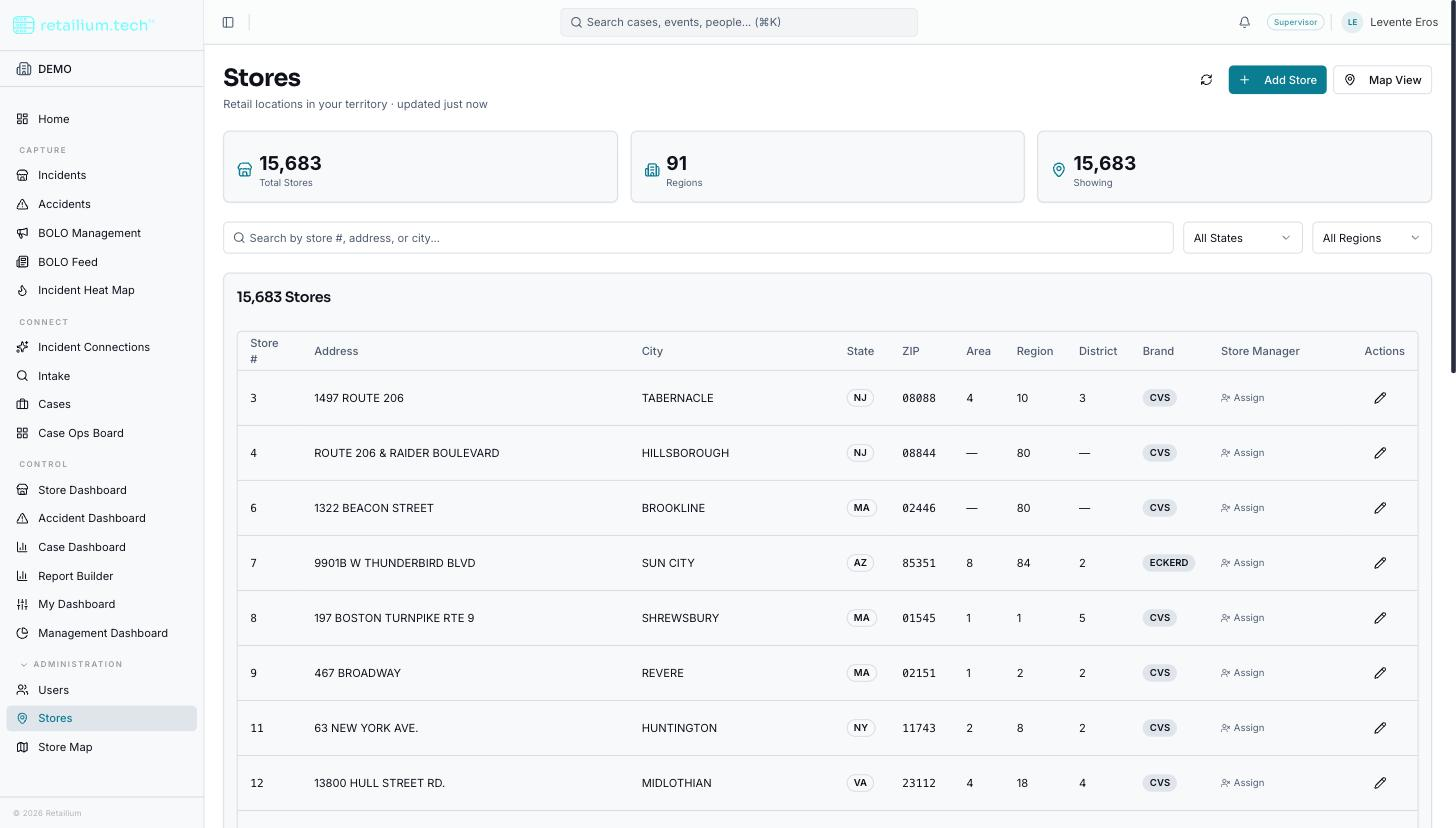
Assign a store manager
- Select a store row's manager column to open the edit dialog.
- Enter Manager Name, Manager Email (required), and Manager Phone.
- Save. The change takes effect immediately.
Manager email is required: saving with a blank email is blocked.
Edit a store
- Select Edit on a store row to open its full edit page, pre-filled.
- Change what you need: street address, city, state, ZIP, geo hierarchy (area, region, district), coordinates, and manager contact.
- Save. The change takes effect immediately and returns you to the store list.
Two fields can never be changed after a store is created: the store number and the brand (company code). The form disables them.
For territory-scoped roles, any geo change must keep the store inside your territory: a save that would move it out of scope is rejected.
Every store needs a timezone
Every store records the timezone it operates in, as a full named zone (for example America/Denver). It is required whenever a store is created or edited, and it is the zone every incident, accident, and BOLO at that store is displayed in.
Setting it from the state is not enough, twelve US states span two zones, so it is derived from the store's coordinates and confirmed by you. Correcting a store's timezone later does not retroactively shift its historical records: each one keeps the zone it was filed with, so the records needing repair are identifiable rather than silently changed.
If an incident cannot be filed because a store has no timezone, this is the screen where an administrator fixes it.
The store picker in other forms
Forms that reference a store (incident report, accident report, start an assessment, internal case intake), use one shared searchable picker rather than a plain dropdown.
- Search runs on the server and returns at most 50 stores per query, so no form ever downloads the full registry.
- A numeric query matches store number or ZIP by prefix, with the exact store-number match first; a text query matches city, address, or state.
- Your five most recent store selections appear first when the search box is empty. Each is re-checked against the server before it is applied, so a form never inherits an out-of-date or out-of-territory store.