
Edit a BOLO, set its status, or delete it
Summary: You will open a BOLO's detail page, edit its four content sections, change its status, and, from the source case, delete it.
Open a BOLO
Open a BOLO from the discovery list or the feed. The detail page shows its title and status, persons and vehicles of interest, the editable content sections, the share history, and the cases and incidents it is linked to.
Two things happen in place on this page rather than on a separate screen: editing turns a content section into an editable field, and sharing replaces the page body with the sharing form. There is no separate BOLO edit page.
Edit the content
A BOLO has four editable content sections. Any role that may edit BOLOs edits them by selecting to edit, then Save or Cancel.
| Section | What it holds |
|---|---|
| Incident Summary | Who, which stores, how much |
| BOLO Reason | Why a BOLO was issued for this suspect |
| Modus Operandi | The characteristic method, tools, and approach |
| Disclaimer | The safety warning for store employees |
A role that may not edit sees these sections read-only, with no edit control. An empty section is shown as empty (not hidden), so someone who may edit can fill it in.
Photos cannot be changed on a BOLO. Persons and vehicles of interest, and their photos, belong to the source incident or case and are edited there. The BOLO shows what those records hold when you open it.
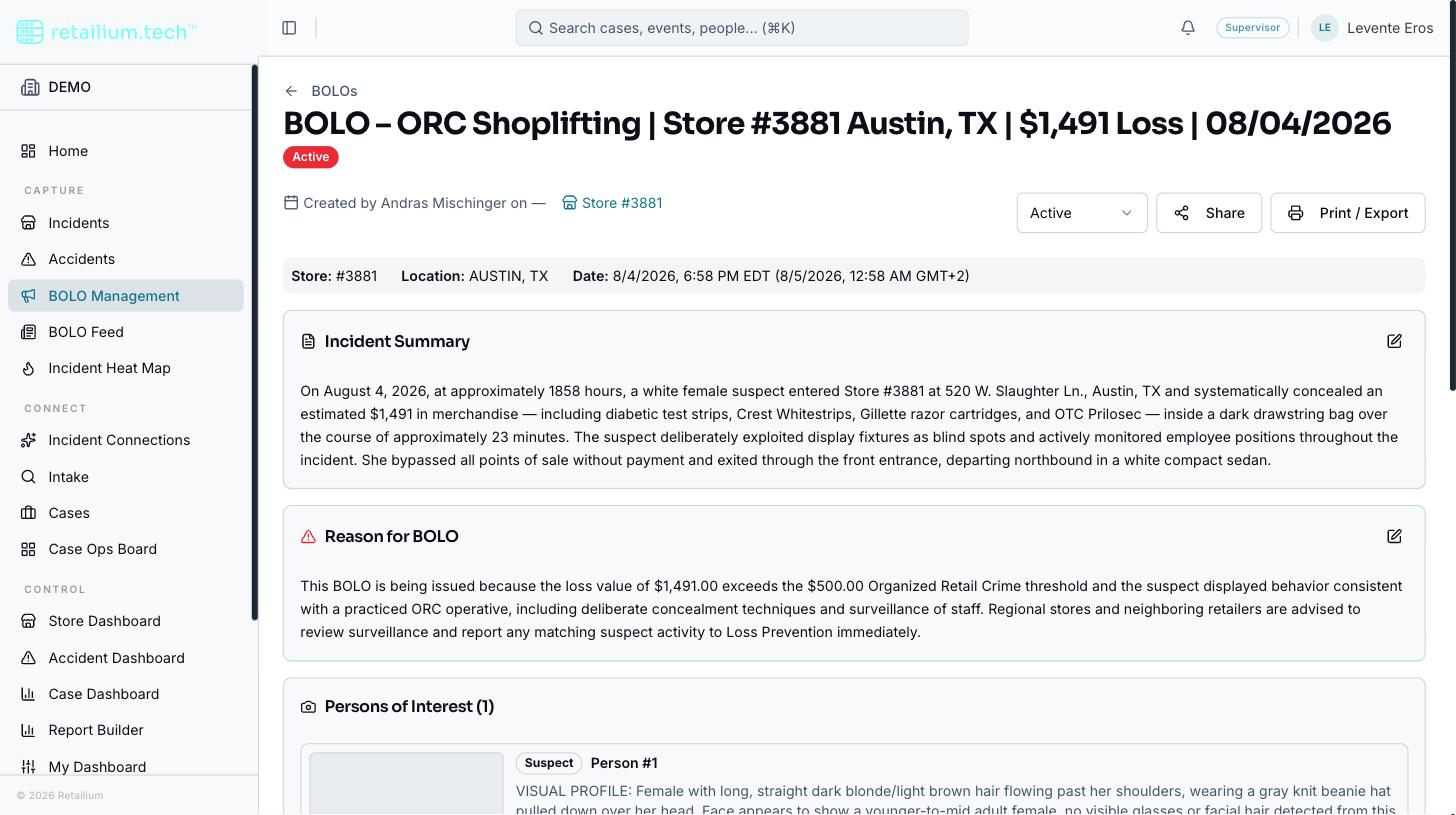
Change the status
A BOLO has three statuses:
| Status | Meaning |
|---|---|
| Active | Live, currently distributed alert |
| Archived | Closed: retained for reference |
| Cancelled | Revoked: issued in error or invalidated |
Any status can change to any other; there are no restricted transitions and no reason is required. Only a role that may edit BOLOs can change status. Status affects only what appears in My Feed (which shows Active BOLOs). An archived or cancelled BOLO is still listed, still openable, still exportable, and still shareable.
Delete a BOLO
A BOLO can be deleted, but only from the BOLO tab of the case it is attached to: there is no delete action on the discovery list, the feed, or the detail page. The action is open to any role that may edit cases (Administrator, Supervisor, Managers, Investigator, Store Coordinator, and the field asset-protection roles).
- Open the case and go to its BOLO tab.
- Delete the BOLO. A confirmation dialog names the BOLO and states the consequence first.
Deleting removes the BOLO from view rather than erasing it: the record is retained and can be restored by an administrator, but nothing in the product surfaces it again in the meantime. It leaves the discovery list, the feed, search, every saved view and collection, the catch-up count, and the case's BOLO tab. A bookmarked link to its detail page still opens but reports that the BOLO was not found.
Deleting a BOLO changes nothing on the incident or case it was created from: the facts live there and survive untouched.
When to delete versus cancel. Setting a BOLO to Cancelled or Archived is the softer choice: it keeps the BOLO listed and openable but drops it out of My Feed. Delete only when the BOLO should disappear from view entirely.
Good to know
- Nothing expires. A BOLO stays Active until someone changes its status: there is no automatic archival, age limit, or reminder.
- Priority (High / Medium / Low) is set by editing the BOLO or by escalating it during triage. See Find and triage BOLOs.