
Find and triage BOLOs
Summary: You will use BOLO Discovery to find BOLOs, save filtered views, organize BOLOs into collections, and use the triage flow to clear your review queue.
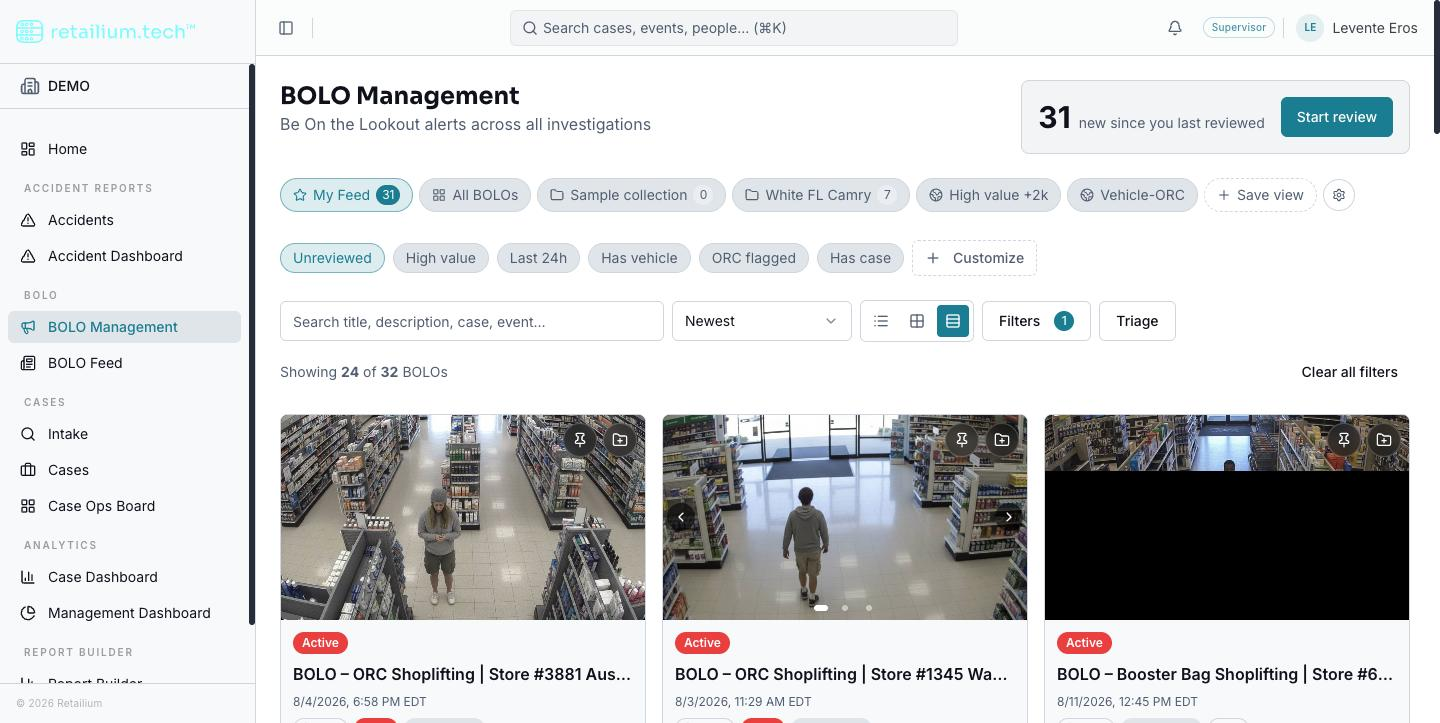
BOLO Discovery is the main browsing surface: a card gallery over every BOLO in your organization. All filtering, searching, and sorting apply to the whole organization's BOLOs, not just the page on screen, so the counts you see are true totals.
Choose a view mode
Three view modes switch from the toolbar:
- Large (default): a wide grid with a full photo carousel and a two-line description.
- Small: a compact grid with the key badges and facts, no description.
- List: a single column with a small thumbnail and links to the source incident and case.
A card omits a chip entirely when its data is missing (no loss total, no plate), so you never see an empty chip. A "New" badge appears on any BOLO created in the last 24 hours.
Filter
Open the filter pane for the full set of facets: status, priority, loss value, region/district/store, state, incident type, product, method of operation, date, vehicle, and evidence links.
Each facet control is tri-state: click to cycle through off → include → exclude → off. Include shows a check; exclude shows a strikethrough. Exclude wins over include.
A row of quick filters above the toolbar gives one-tap shortcuts: Unreviewed, High value ($1,000+), Last 24h, Has vehicle, ORC flagged, and Has case. You can choose which shortcuts appear and in what order using the Customize control at the end of the row.
Search matches the title, description, incident summary, reason, method of operation, and a partial license plate, and combines with every active filter. Sort offers Newest (default), Oldest, Highest loss, Lowest loss, Priority, and Most suspects.
Results load 24 at a time; Load more appends the next batch. A "Showing X of Y BOLOs" line is always visible, and a Clear all filters control appears whenever any filter or search is active.
Save a view or build a collection
A saved view is a named snapshot of your current filters, search, and sort. A collection is a named, hand-picked list of specific BOLOs.
- Save a view: select Save view, give it a name, and choose Personal or Shared. Shared views are available only to Administrators, Supervisors, and Managers; everyone else can still save personally.
- Build a collection: use the folder control on any card to add it to a collection, or create a new one inline. Selecting a collection from the saved-views bar narrows the list to its members.
- My Focus is a permanent personal collection that can never be deleted, renamed, or shared. The pin control in each card's corner adds or removes a BOLO from it.
The saved-views bar sits above the toolbar and always shows My Feed, All BOLOs, then your personal views, collections, and shared views. My Feed and All BOLOs are permanent and cannot be deleted.
Manage your saved views from the Manage views control. You can rename, change scope (personal/shared), update a view to your current filters, duplicate a shared view as a personal one, and delete. Deleting a shared view warns that it removes it for everyone in your organization.
Work through your queue with triage
Triage is a focused, one-BOLO-at-a-time flow for clearing unreviewed BOLOs. Open it from the toolbar's Triage button or the catch-up card's Start review button.
Each BOLO can be decided three ways, by keyboard, swipe, or button:
| Decision | Key | Effect |
|---|---|---|
| Skip | ← | Marks it reviewed; nothing else. A plain "seen it." |
| Escalate | ↑ | Marks it reviewed, adds it to your focus, and, if you may edit BOLOs, raises its priority to High for the whole organization. |
| Focus | → | Marks it reviewed and adds it to your focus. |
Every decision except Skip offers an undo that reverses the review record, the focus change, and any priority change. Press Escape to close triage at any point without deciding the current card.
Understand your review queue
A BOLO counts as unreviewed for you when you have never reviewed it, or when its facts have materially changed since you last did. That single rule drives three things: My Feed (unreviewed, Active BOLOs, the view shown when the page opens), the catch-up card at the top of the list, and the Unreviewed quick filter.
Your review history and triage decisions are private. One user's Skip or Focus is invisible to everyone else: only Escalate's priority change is visible to others.
Note: A BOLO you reviewed reappears in your queue only when its facts change (photos, loss, geography, plates, suspects, ORC flag, incident type, products, method, vehicle, or case). Editing its prose or changing its status does not bring it back.
The BOLO Feed
The BOLO Feed is a separate, mobile-first view showing one BOLO per screen, newest first, browsed by swipe or arrow keys. It applies no status filter, so archived and cancelled BOLOs appear alongside active ones. It needs no permission beyond being able to view BOLOs.