
Create an assessment template
Summary: You will build an assessment template: sections and questions, with optional grading and per-question requirements.
Store Assessment lets asset-protection teams author reusable assessment templates and conduct scored in-store compliance checks, assessments, against them. This article covers authoring; see Conduct an assessment for running one.
The word "audit" no longer appears on screen (it survives only in internal routes and permission names), and the Auditor role has nothing to do with this feature.
Who can author templates
Store Assessment is visible only to Administrators, Regional Asset Protection Managers, and District Asset Protection Managers. All three can both author templates and conduct assessments: there is no separate "designer" and "conductor" split. Every other role has no access.
Build the template
- Create one or more sections, each holding a set of questions.
- For each question, choose its type (short answer, single choice, multiple choice, or yes/no) and write the prompt. Optionally add help text and possible answers.
- Set the "must provide" requirements for each question (below).
- If the template should be graded, assign points and a pass threshold.
- Save.
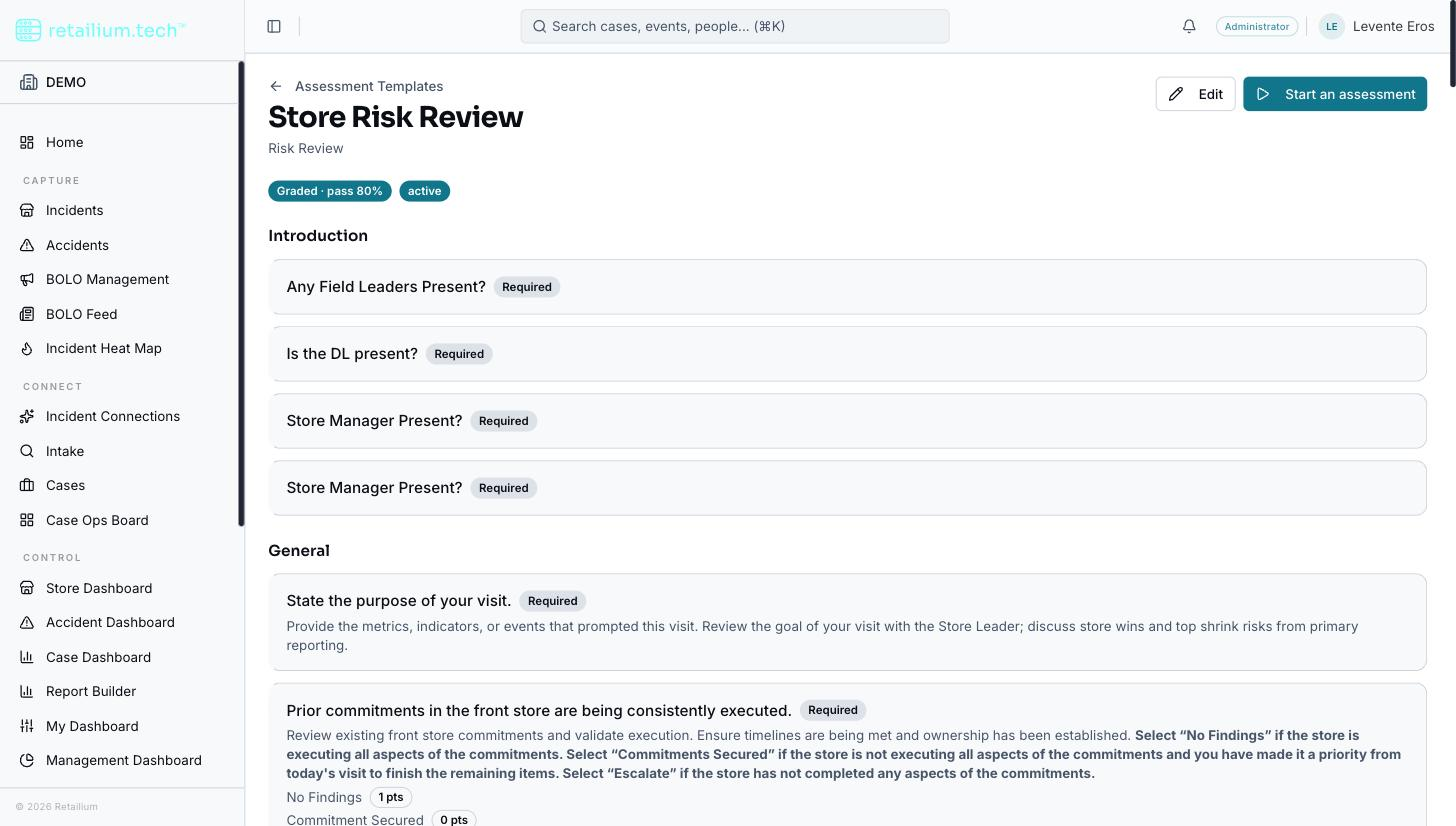
Require what a person must provide
Beyond simply requiring an answer, a question can also require any of these before an assessment can be submitted: a written comment, photo evidence, or a written commitment plan. If any is marked required, the option to provide it is shown automatically.
Grade a template (optional)
A template can be graded or ungraded.
- On a graded template, each possible answer carries a point value you choose. On submit, the platform automatically computes a score, the percentage of possible points earned, and compares it against a pass threshold you set. The result is a percentage plus pass/fail.
- You can exclude a question from scoring even on a graded template, so one template can mix scored and informational-only questions.
How versioning works
Templates are versioned. Saving a new or edited template creates a new, permanent version rather than overwriting the previous one.
- The first save creates version 1; every later edit creates the next version.
- An assessment already in progress or completed stays tied to the exact version it was started against, so editing a template never changes the meaning of assessments already done.
- When browsing templates, only the current version is shown. There is no way to browse or compare past versions today.
Good to know
- Every template shows as "Draft." Templates carry a Draft/Active status, but nothing in the product moves one to Active, so all show Draft. This is not a gate: a Draft template can be used to conduct an assessment exactly like any other, with no review or approval step.
- Nothing can be deleted or archived. Neither a template nor an assessment can be removed once created; a template you no longer want simply stays in the list.
- No importing. Templates are authored in-app only.
- Territory applies to conducting, not authoring: Regional and District managers can only conduct assessments against stores in their territory.