
Work with the Involved Persons tab
Summary: You will use the Involved Persons tab to see the people involved in a case, open one for editing, and manage their photos.
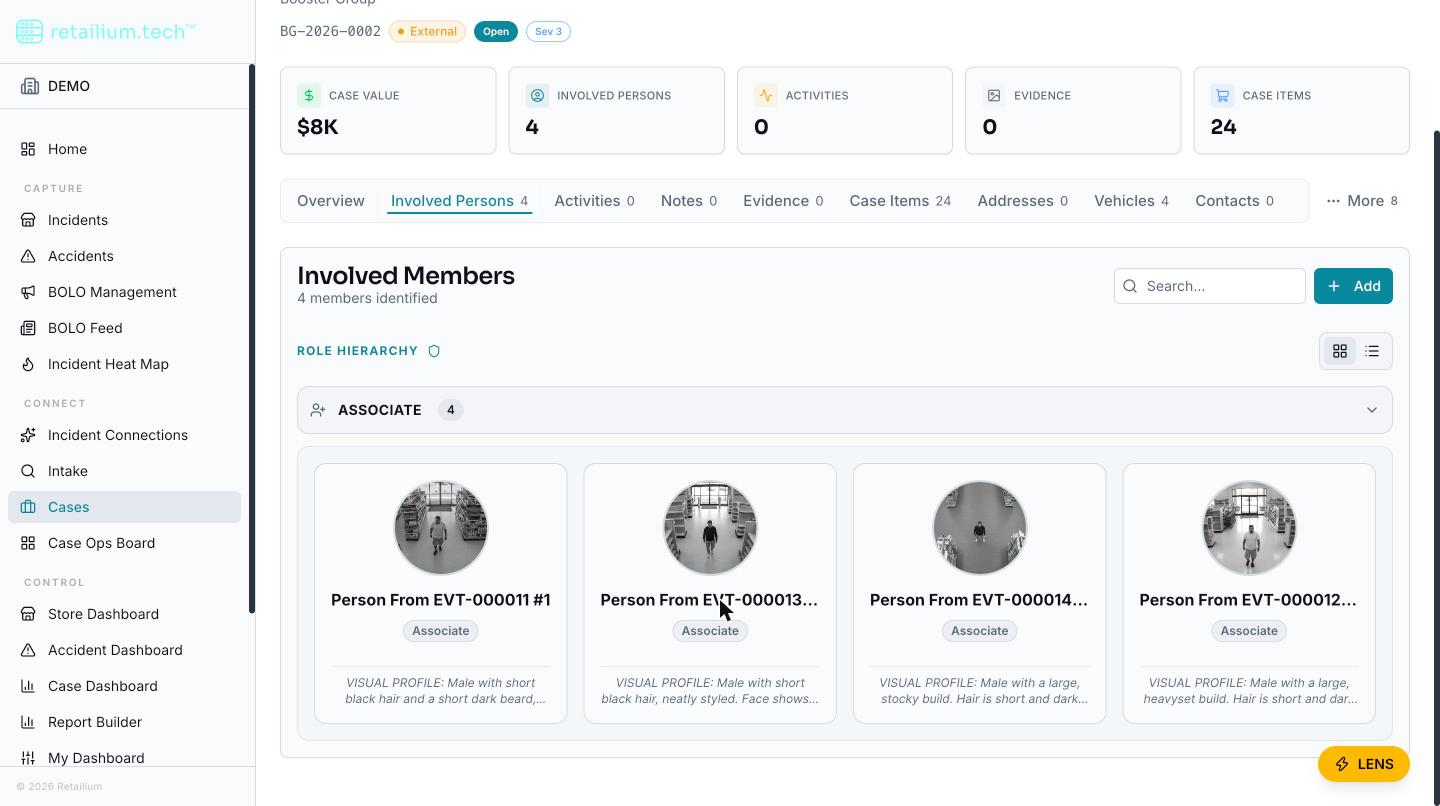
The people on a case, suspects and associates, are the case's members, and the tab that lists them is labelled Involved Persons on both case shapes. (Earlier versions labelled it "Members" on external cases; the records are the same.)
View people as tiles or a table
Case members can be viewed as grouped tiles or as a table.
- External cases group by the crew role hierarchy: principal (red), fence (amber), booster (yellow), and associate (default).
- Internal cases group by a separate, unrelated taxonomy: Employee, Non-employee, and Other.
The two taxonomies are never mixed or converted into each other.
Open and edit a person
Select a person to open a right-side slide-in pane holding their details and a photo gallery. A member created by AI import carries an AI-generated badge, so you can tell imported members from hand-entered ones.
Manage photos
The photo gallery at the top of the pane shows thumbnails in a horizontal row, opening full-size on click. You can upload photos, view them in a lightbox, set a default, and remove them. Uploaded photos are held privately and shown only through short-lived links generated when you view them.
- Set as default promotes one photo to be the person's headline image.
- Removing the default photo automatically promotes the earliest remaining photo.
- Removing the last photo leaves the person with no image and no error.
How people relate to other features
- They are the source of the persons of interest on a BOLO created from a case.
- They appear as nodes on the Network tab.
- Adding or editing a person triggers a conflict check against other cases: if the same person appears on another case, you may see a match warning. See Share a case.
The primary target
One member is the primary target: the subject of this case. This is independent of crew role: a fence can be the primary target. The primary target is drawn most prominently on the network graph and features on the Overview tab's primary-target card.