
Create a case with AI import
Summary: You will upload documents, review everything the platform proposes, accept or reject each item, and create the case.
Prerequisites
- A role that can import: Administrator, Supervisor, Manager, Investigator, or Store Coordinator (Investigators and Store Coordinators only on cases they can already see). Import access grants nothing on a case you could not otherwise see.
- Source documents to work from.
AI import creates external cases only. Internal cases add documents by plain upload and never use the import wizard. It is never available to Platform Administrators, ORC Analysts, Auditors, Viewers, External Partners, or Store Associates.
Upload the documents
- Start a new case with AI Import.
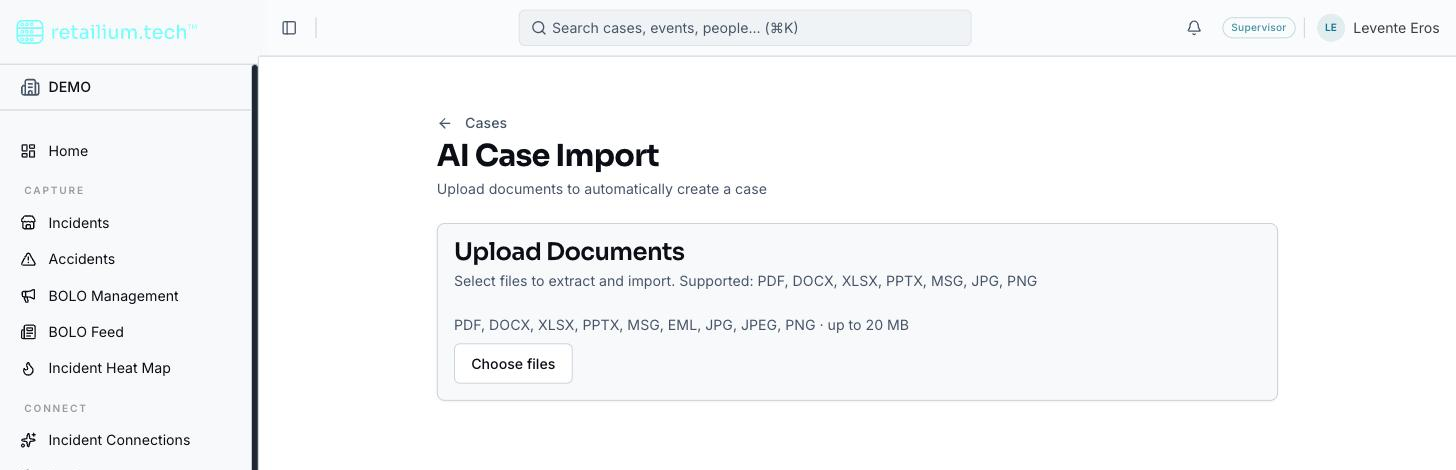
- Add between 1 and 20 documents, at most 20 MB each: PDFs, Word documents, Excel workbooks, PowerPoint decks, Outlook messages, saved emails, and JPEG or PNG images. Drag and drop, or use the file picker. Plain CSV files are not accepted: upload a spreadsheet in its Excel form.
- Optionally paste external context as free text alongside the files.
- Start processing. A progress bar shows each step alongside the named documents being worked on; that list is the same after a reload or in a second tab. When it finishes, you land on the review screen.
A case can hold any number of imports, and each is tracked separately: the progress view follows the import you just started, not the case's earlier ones.
What the platform extracts
The platform proposes structured data across these categories:
- Case metadata: name, case type, category, estimated value, narrative, federal flag, impacted states.
- Case members (suspects) (name, aliases, crew role (Leader, Fence, Booster, Associate), and personal identifiers where present. One member is marked the primary target), the subject of this case, independent of crew role.
- Activities, involved organizations, addresses, vehicles, transactions, case items, and notes.
The platform filters out victim retailers, law enforcement, generic platforms (eBay, PayPal, FedEx), and software vendors: these are never proposed as organizations.
Classified fields use the app's own lists, never invented values. Case type, person role, address type, item category, activity type, and the rest are picked from the same fixed lists the app uses elsewhere, so an imported case can be filtered and reported on alongside a hand-entered one. Where the documents describe something outside a list, the value is filed under that field's fallback (for example, an unrecognized case type becomes Special Investigations) rather than invented.
Review before creating
The review screen is a queue: every proposed item is visible at once, grouped into a tab per category. Each item can be accepted, rejected, or left proposed (the default). Each tab also has an Accept all button. Editing a proposal before accepting it offers the same fixed lists as the rest of the app, as pickers rather than free-text boxes.
- An images tab shows every extracted figure and lets you assign one to a suspect or vehicle by hand. There is no confidence score or automatic threshold: anything the platform cannot attribute is simply left unassigned for you to set. An image is only ever linked to a person when it actually depicts a real individual (a photo, mugshot, or ID portrait); logos, receipts, maps, and product photos are never attached to a person.
- The Create case button stays disabled until you tick the acknowledgment checkbox confirming you reviewed the proposals. There is no way to commit an import unreviewed.
Select Create case to commit. The accepted items become the new case.
Add documents to a case that already exists
From an existing external case, AI Import starts an import merged into that case rather than creating a new one. Each proposal is tagged by how it relates to what the case already holds:
| Tag | Meaning | Default |
|---|---|---|
| New (green) | Not in the case | Proposed |
| Updated (amber) | Matches an existing item but carries new data | Proposed |
| Already in case (grey) | An exact duplicate | Auto-rejected (you can still accept it) |
The platform proposes only genuinely new entities and updates the narrative and estimated value against what is already recorded. Committing the merge is recorded on the platform's audit trail (how many documents it carried, and that it merged into an existing case) rather than on the Activities tab, which is reserved for work an investigator did by hand. Activities the AI finds inside the documents (a surveillance session, an interview), are genuine case content and appear on the tab as normal.