
Your profile and display preferences
Summary: You will find your profile page and set your personal display preferences, which are yours alone and follow you across devices and organizations.
Every person has four self-service display settings of their own: your timezone, your date format, your time format, and whether you have confirmed your timezone. These belong to you, not to an organization: nobody, at any level, can see or change another person's display settings.
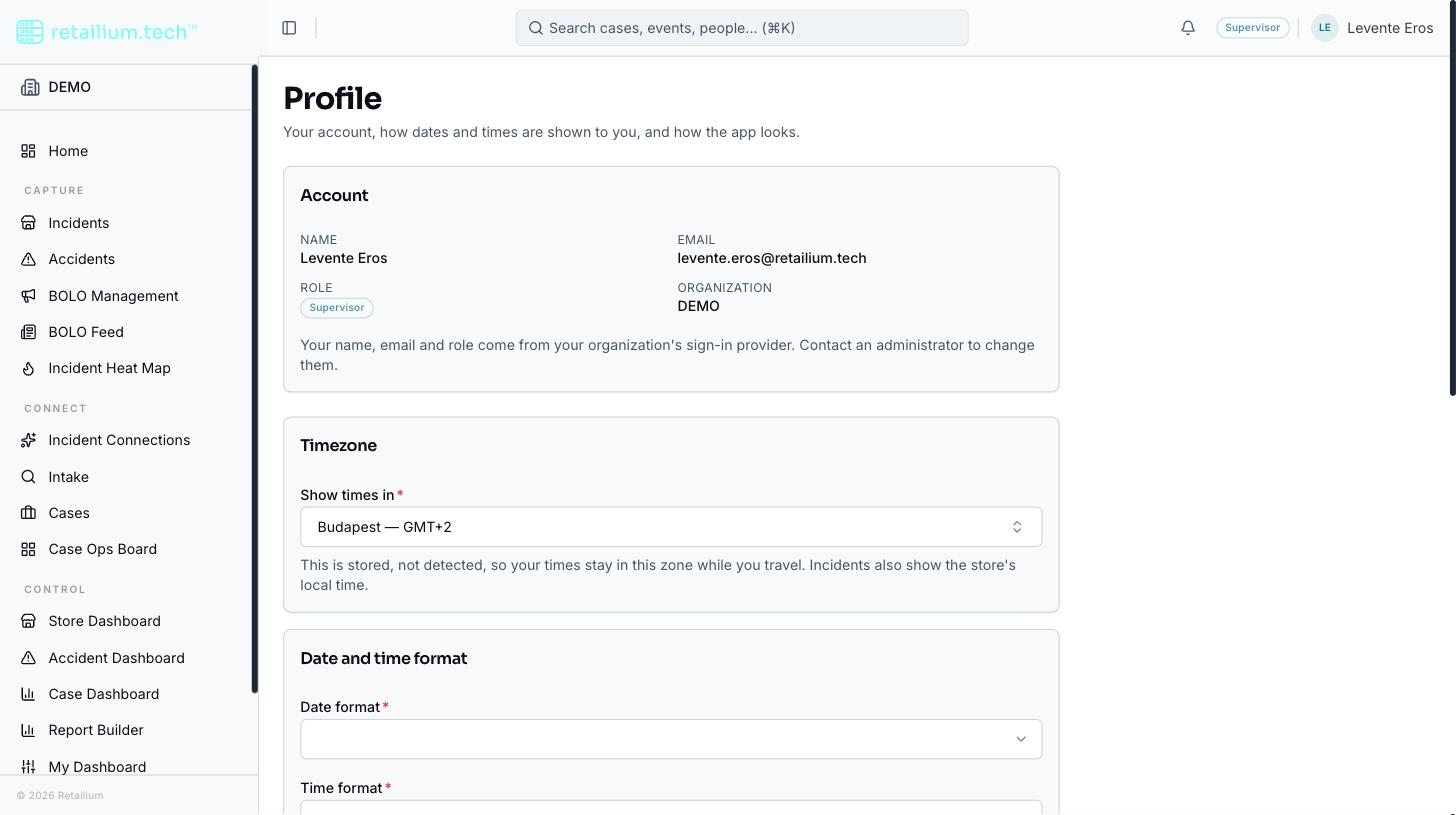
Open your profile
Your profile page is reached from the account menu behind your avatar in the header, not from the sidebar. It holds everything personal in one place:
- Account details the sign-in provider supplies: your name, email, role, and organization. These are read-only and cannot be edited here or anywhere in the product.
- Display preferences: timezone, date format, and time format.
- Appearance: color scheme and light or dark mode.
The account menu also carries a light/dark flip on its own, so you can switch appearance without opening the page. Where your organization has support chat set up, the same menu carries a Support entry that opens a live chat with the Retailium support team: see Get help with support chat.
Set your display preferences
Every internal role can change all four values, with a live preview of how your choices will render. Saving the page is itself a confirmation of your timezone.
- Date format is one of MM/DD/YYYY, DD/MM/YYYY, YYYY-MM-DD, or "MMM D, YYYY."
- Time format is 12-hour or 24-hour.
- Timezone is a full named zone (for example America/Denver), chosen from the zones your browser recognizes. An abbreviation like "EST" or a raw offset like "-07:00" is not accepted.
Why preferences never re-detect
What you see is always what you chose. Your browser's own timezone is consulted exactly once, to prefill your first-sign-in confirmation, and never again. That is what lets you keep seeing your home timezone while traveling, and what keeps a page and its live updates agreeing on every timestamp.
The first-sign-in timezone confirmation
The first time you reach the application without having confirmed your timezone, a blocking prompt appears, prefilled from the zone your browser reports. It cannot be dismissed except by confirming (no cancel, no clicking away), because a person who never answers would silently inherit a default zone, and every timestamp they saw would be wrong with nothing to indicate it.
Store Associates see the same prompt on the incident submission form, which is why every role, not only those with dashboard access, has the right to confirm their own zone.
Once confirmed, the prompt never appears again. Changing your zone later from the profile page does not re-trigger it.
Good to know
- Appearance is device-local. Your color scheme and light/dark choice live in the browser and do not follow you to another machine. The page says so, because a preference that silently fails to travel reads as a bug. Timezone and formats, by contrast, do follow you everywhere.
- Platform Administrators have these settings too. Even though a Platform Administrator's account sits outside every customer organization, the settings follow the person, so they are set the same way.